
Select Your Region
Region-Based Optimized Content
7 Mistakes to Avoid When Moving from WooCommerce to Shopify
Moving from WooCommerce to Shopify? Avoid 7 costly mistakes, from missing 301 redirects to lost metadata, and keep your traffic and sales safe.

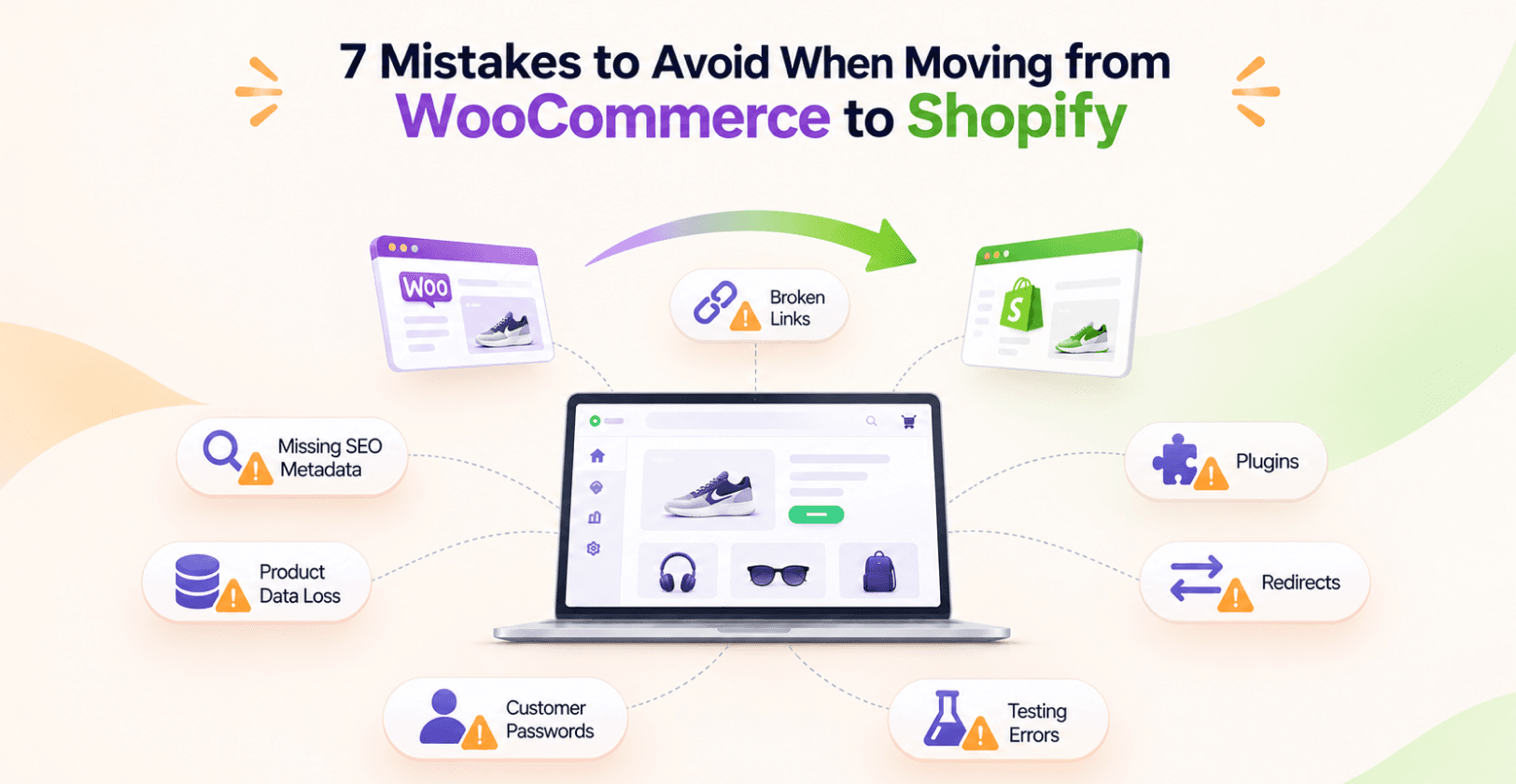
Most problems after a WooCommerce to Shopify move come from a short list of avoidable mistakes, and almost all of them are made before launch day, not on it. The platform itself is rarely the issue. What hurts is a missing redirect, a forgotten page title, or a plugin nobody thought to replace.
WooCommerce is flexible, but it asks you to look after hosting, updates, security and a growing stack of plugins. Shopify is a hosted platform that takes much of that off your plate, which is why many growing stores make the switch. The catch is that the two platforms store and organise things differently, so a store cannot simply be lifted from one and dropped into the other.
This guide covers the seven mistakes we see most often, why each one hurts, and exactly how to avoid it. If you are still deciding whether to move, read it as a preview of what the project involves. If you have already decided, use it as a checklist.
The Seven Mistakes at a Glance
Changing URLs without 301 redirects
Losing page titles, descriptions and other SEO details
Moving everything, including the clutter
Ignoring how products, variants and attributes map across
Forgetting that customer passwords do not transfer
Not planning replacements for your plugins
Launching without proper testing and monitoring
Mistake 1: Changing URLs Without 301 Redirects
This is the most expensive mistake, because it quietly removes pages from Google. Search engines have spent months or years learning your addresses. If those addresses stop working, the pages disappear from results and the traffic and revenue that came with them go too.
The problem is built into the platform difference. Shopify uses fixed URL prefixes for products, collections, pages and blog posts, and they cannot be changed. A typical WooCommerce store looks different:
| Content | Typical WooCommerce URL | Shopify URL |
|---|---|---|
| Product | /product/blue-shirt/ | /products/blue-shirt |
| Category | /product-category/shirts/ | /collections/shirts |
| Page | /about-us/ | /pages/about-us |
| Blog post | /my-article/ | /blogs/news/my-article |
Because almost every product, category and page address changes, redirects are not optional. A 301 redirect is a permanent redirect that tells search engines and visitors the page has moved, and passes most of the page's value to the new address.
How to avoid it
Crawl your current store before you touch anything and export every URL, especially the ones that earn clicks in Google Search Console.
Build a spreadsheet that maps each old URL to its new Shopify address. Reusing your WooCommerce slug as the Shopify handle keeps the last part of the address identical and makes the map much simpler.
Load the map into Shopify's URL redirects tool, which accepts a CSV import, so you are not adding hundreds of redirects by hand.
Send every old page to its closest equivalent. Redirecting everything to the homepage looks like a dead end to search engines.
Keep it to one hop. The old URL should go straight to the final page, never through a chain of redirects.
Mistake 2: Losing Page Titles, Descriptions and Other SEO Details
Redirects keep your addresses working, but rankings also depend on what is on the page. Many store owners move products and images carefully and then find that every page title and meta description has been reset or left empty, because those details lived inside a WooCommerce SEO plugin.
The details that most often go missing are page titles and meta descriptions, headings, image alt text, canonical tags, and structured data such as price, availability and review ratings. Losing any of these weakens how your pages appear in search, and rich results such as star ratings can disappear altogether.
How to avoid it
Export titles and descriptions from your crawl before the move and import them into the matching Shopify fields for products, collections, pages and articles.
Keep headings and on-page copy the same for pages that already rank well. A migration is not the time to rewrite your best performers.
Carry over image alt text, which helps both accessibility and image search.
Check that your new Shopify theme outputs product structured data, and test a few product pages with Google's Rich Results Test.
Submit the new sitemap in Google Search Console after launch so Google finds the new structure quickly.
Mistake 3: Moving Everything, Including the Clutter
A store that has run for years collects clutter: discontinued products, empty categories, duplicate customer records, test orders, old coupon codes and pages nobody visits. Copying all of it across means paying to move data you do not need, and it makes the new store slower to manage from day one.
There is also an SEO cost. Thin or outdated pages that are carried over can dilute a site that is otherwise strong.
How to avoid it
Review products by sales and traffic. Archive items that have not sold in a long time and have no search value.
Merge or remove categories with only a few products, and plan how your categories will become Shopify collections.
Clean customer data before export: remove duplicates and test accounts, and keep marketing consent status accurate.
Keep old pages that earn traffic or backlinks, even if they look dated. Redirect the pages you remove to the closest useful page.
Remember that cleanup is the cheapest part of the project. Doing it before the move is far easier than fixing it afterwards.
Mistake 4: Ignoring How Products, Variants and Attributes Map Across
A catalog is more than a list of products. In WooCommerce, a shirt might be a variable product with size and colour attributes, custom fields for fabric and care instructions, and categories and tags layered on top. Shopify handles the same information differently, and a move that ignores the differences produces broken variants, missing details and messy collections.
The main differences to plan for:
| In WooCommerce | In Shopify |
|---|---|
| Variable products with attributes and variations | Products with options and variants |
| Custom fields and extra product data | Metafields, or theme and app fields |
| Categories and tags | Collections (manual or automatic) and tags |
| Product slug | Product handle, which must be unique |
Shopify also limits the number of options and variants a single product can have, so a product with a very large set of combinations may need to be restructured. Check Shopify's current limits before you plan the catalog, because they change over time.
How to avoid it
List every product type you sell (simple, variable, bundles, digital, subscriptions) and decide how each one will look in Shopify.
Decide where custom fields will live. Metafields work for structured data, but your theme needs to display them.
Rebuild categories as collections on purpose. Automatic collections save time when products share a tag, type or price rule.
Check that SKUs, prices, stock levels and images arrive intact, and that handles are unique.
Import a small sample of 10 to 20 products first, inspect every field in the admin, and only then run the full import.
Mistake 5: Forgetting That Customer Passwords Do Not Transfer
Customer data can be imported into Shopify, including names, addresses and contact details. Passwords are the exception. They are stored securely in WooCommerce and cannot be carried across, so every returning customer will need to set a new one.
If you do not plan for this, the first thing returning customers see is a failed login. Some will reset their password, some will check out as guests, and some will simply leave. A sudden wave of password-reset emails with no explanation can also look suspicious.
Order history, wishlists, saved carts and subscription data raise the same question: what comes across, in what form, and what is archived instead.
How to avoid it
Decide early whether customers will be invited to activate their new accounts or will reset passwords on their first login.
Write a short email explaining the move and what customers need to do, and send it before or just after launch, so the reset message is expected.
Import customers with accurate marketing consent status, so you only email people who agreed to hear from you.
Decide how much order history you need inside Shopify, and how much can live in an exported archive.
Check how subscriptions, loyalty points and wishlists will be handled, because these usually depend on the apps you choose.
Mistake 6: Not Planning Replacements for Your Plugins
A WooCommerce store usually runs on plugins: subscriptions, wholesale pricing, product bundles, filters, shipping rules, reviews, SEO tools, popups and more. Plugins do not move to Shopify. Each one has to be replaced by a built-in Shopify feature, an app, or a decision to drop it.
The mistake is discovering this late. A store owner finds two weeks before launch that the wholesale pricing plugin has no direct equivalent, or that the replacement app costs more than expected, or that three apps now overlap and slow the storefront down.
How to avoid it
Export your active plugin list on day one and write down what each one does for your business, not just its name.
Sort each plugin into one of three groups: now built into Shopify, replaced by an app, or no longer needed.
For every app you plan to use, check what it costs per month, how it affects page speed, and whether it works with your theme.
Add the monthly app costs to your budget. Several small subscriptions add up, and they belong in any honest comparison with your WooCommerce running costs.
Do not copy your old setup one for one. A migration is a chance to remove features that nobody used.
Mistake 7: Launching Without Proper Testing and Monitoring
The last mistake is treating launch day as the finish line. A store can look perfect in the admin and still fail in ways customers notice at once: a payment method that errors, shipping rates that do not match, tax that is wrong, or order emails that never arrive. After launch, redirect gaps and missing metadata only show up in Search Console days later.
How to avoid it
Before launch, test on a staging or development store rather than your live site:
Place test orders with every payment method, discount code, gift card and shipping option.
Check tax and shipping rules for each region you sell to.
Confirm that order, shipping and account emails are sent and look right.
Walk through the whole checkout on a phone, where most shoppers now buy.
Test every redirect from your map, and check that analytics and advertising tags fire.
Crawl the new store and compare it with your original crawl for missing pages, titles and descriptions.
Choose the launch window carefully. Avoid your busiest sales periods, keep the old store available privately for a while, and agree a rollback plan in advance.
After launch, check Google Search Console every day for the first two weeks for crawl errors and coverage changes, and watch your top landing pages. Small ranking movement is normal. A steady drop on your best pages usually means a redirect or metadata problem, and it is far easier to fix in the first week than in the third month. If you want an experienced team to run this process with you, our migration support covers the testing and launch checks end to end.
A Quick Pre-Launch Checklist
Use this as a final check before you switch your domain.
Every indexable old URL has a one-hop 301 redirect to its closest new page
Page titles, meta descriptions, headings and image alt text are carried over
Dead products, empty categories and duplicate customers have been cleaned out
Products, variants, SKUs, prices, stock and images match the source store
Collections, metafields and custom product data display correctly in the theme
A customer communication plan covers new passwords and account activation
Every plugin has a replacement app, a built-in feature, or a decision to drop it
Test orders pass with every payment method, discount code and shipping rule
Order emails, tax, shipping and mobile checkout have been tested
Analytics, advertising tags and the new sitemap are ready to go live
Launch is scheduled outside peak sales, with a rollback plan


Hi, my name is Jaswinder, let's talk about your business needs.
I will do my best to find a reliable solution for you!
Final Thoughts
Moving from WooCommerce to Shopify rewards preparation. The seven mistakes above share one cause: treating the move as a file transfer instead of a rebuild. Audit first, map every URL, carry over your SEO details, clean the data, plan for passwords and plugins, test thoroughly, and keep watching after launch. Do those well and the new store can be faster, easier to run and ready to grow.
If you would like experienced help, you can read how our team handles a WooCommerce to Shopify migration service, including how we protect URLs and rankings. If you are still comparing platforms, we also cover WooCommerce to BigCommerce moves.
Frequently Asked Questions
Quick answers to common questions about moving a store from WooCommerce to Shopify
Not if the move is planned properly. Rankings are protected by one-hop 301 redirects, carried-over page titles and descriptions, working structured data, and close monitoring in Google Search Console after launch. Traffic drops usually come from skipping those steps, not from the platform itself. Small movement in the first weeks is normal.
Mostly no. Shopify uses fixed prefixes such as /products/, /collections/, /pages/ and /blogs/, so product, category, page and blog URLs change. The fix is to map every old URL to its new address and import the redirects, and to reuse your old slugs as Shopify handles so the final part of each address stays the same.
No. Passwords cannot be moved across platforms, but customer names, addresses and contact details can be imported. Plan to invite customers to activate their accounts or reset their passwords, and tell them about the move in advance so the emails are expected.
It depends on the size of the catalog, the number of variants, custom features, integrations and how much data needs cleaning. A simple store with a clean catalog can be moved quickly, while a store with complex variants, subscriptions or wholesale rules needs more planning and testing. An audit of your current store is the most reliable way to get a realistic timeline.
A small store with simple products can often use Shopify's import tools and a careful checklist. Larger stores, complex variants, custom data, many integrations or strict SEO requirements usually benefit from experienced help, because the costly mistakes are the ones you only notice after launch.
News & Insights
We like to share our thoughts on topics we find inspiring. Explore our news and insights.

What Is Vibe Coding? Risks and Safe Use for Business Websites
Vibe coding is fast and useful, but AI-built code can hide security gaps. Learn where it works, what can go wrong, and the 7 checks a human must do before launch.
WordPress Security Risks in 2026: Why More Businesses Are Moving to Headless CMS
WordPress plugins are the top reason sites get hacked. Learn the real risks, what a headless CMS fixes and does not fix, and which setup fits your business.